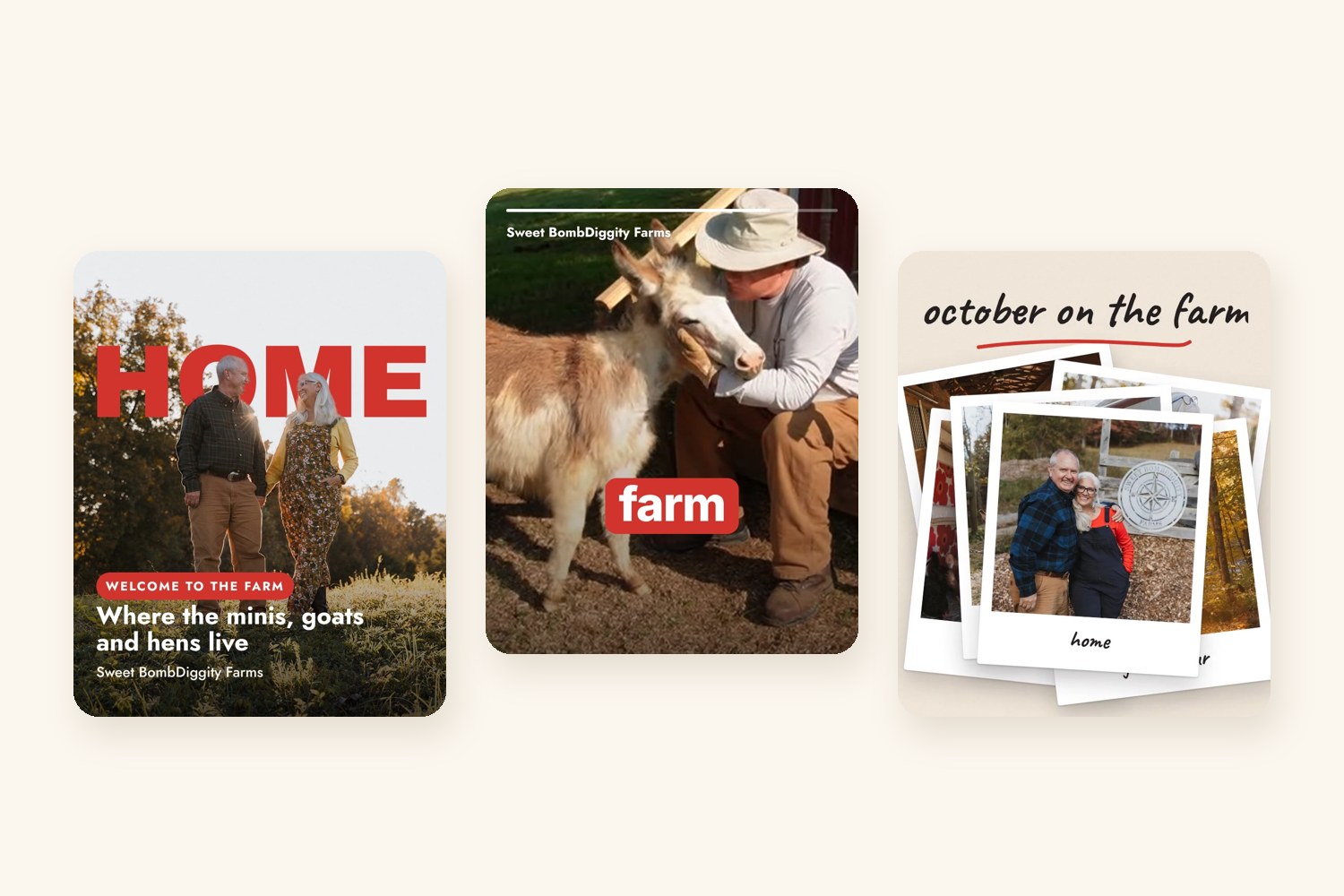
The Reels that stop the scroll use a handful of edits over and over. You can build every one of them in Canva without editing software. Each example below was made for this post from photos and video of Sweet BombDiggity Farms, our farm and animal sanctuary in East Tennessee.
At a glance
1
Hook in one second
The opening frame decides whether people stay.
2
Edit to a rhythm
Cuts and text that land on a beat feel professional.
3
Make the words big
Most people watch with the sound off.
4
End with one ask
Follow, save or visit. Pick one.
Before You Start
- Pick the size first. Reels, TikTok and Stories are vertical at 1080 x 1920 pixels (9:16). Feed posts work well at 1080 x 1350 (4:5), which is what these examples use.
- Find the tools. Select an element and click Animate in the top toolbar. With nothing selected, Animate applies to the whole page. Transitions live between pages on the timeline.
- Export as video. Download as MP4. Some features, like BG Remover, need Canva Pro or an Education account, so check what yours includes.
1. Color pop
The video opens in black and white, then color floods into the people while the background stays gray. It pulls every eye to the subject in the first second.
How to do it in Canva
- Add your photo or clip, then duplicate it so you have two copies stacked.
- Use BG Remover (Pro) on the top copy, and turn the bottom copy black and white with Adjust or a filter.
- Fade the top copy in with a short delay so the color appears after the first beat.
2. Text behind the subject
A giant word sits behind the people in the photo, so they look like they’re standing in front of it. It’s one of the most-used depth tricks on Reels right now.
How to do it in Canva
- Add the photo, then duplicate it so you have two copies stacked.
- On the top copy, use BG Remover (Pro) so only the people remain.
- Put your big text between the two layers, then animate it with Rise.
3. Kinetic captions
One or two words at a time, big and centered, popping in as they are said. It reads fast on a phone and works with the sound off.
How to do it in Canva
- Split your line into short text boxes of one to three words.
- Animate each with Pop or Rise and stagger them on the timeline.
- Put the key word on a brand-color shape so it stands out.
4. Beat-synced quick cuts
Short clips cut on the beat of a song, with a small zoom on each cut. It packs a whole day into a few seconds and feels high-energy.
How to do it in Canva
- Add six to eight short clips and a music track.
- Use Beat Sync to line the cuts up with the music, or split and trim clips by hand.
- Add a small counter or label so viewers know it’s a series.
5. Video inside the letters
Giant letters filled with video. It turns a one-word title into the most interesting thing on screen.
How to do it in Canva
- Open Elements and search for letter frames.
- Spell your word with the frames and drop your video into each letter.
- Animate the group with a zoom or fade into the full video.
6. Split-screen reveal
Three clips slide in as stacked panels, then one takes over the whole screen. It introduces a cast or a lineup in seconds.
How to do it in Canva
- Use a three-row grid from Elements and drop a clip into each row.
- Animate each row with a slide from alternating sides.
- Add a new page with one clip full screen and your title.
7. Photo dump
Photos drop in like a stack of prints, each landing at a slight angle. It feels personal and works for recaps, months and events.
How to do it in Canva
- Add photos inside polaroid-style frames from Elements.
- Tilt each a few degrees and animate them with Drop or Tumble, one after another.
- Write the title in a handwritten font for a personal feel.
8. Match and Move reveal
A small photo card grows smoothly into the full-screen video. It turns a simple title card into a cinematic open.
How to do it in Canva
- On page one, place your video small in a rounded frame with a title.
- Duplicate the page and stretch the video to fill the screen.
- Add the Match and move transition between the pages.
9. Spotlight zoom
Circle the detail, then zoom in on it. It’s a simple setup and punchline that keeps people watching to the end.
How to do it in Canva
- Draw a circle around the detail and animate it with Wipe.
- Duplicate the page and crop in tight on the detail.
- Use Match and move between the pages so the zoom feels smooth.
10. An end card that asks for one thing
Close on your brand with a single call to action. A gentle Breathe pulse draws the eye to the button without being loud.
How to do it in Canva
- Make a last page with your logo, web address and one call to action.
- Animate the logo with Fade and the address with Typewriter.
- Select the button and choose Breathe, and keep the page on screen for two to three seconds.
Before You Post
- Captions on. If anyone speaks, add captions and check every word.
- No rapid flashing. Keep flash and flicker effects short, and never more than three flashes a second. Rapid flashing can trigger seizures.
- Give words time. Leave text on screen long enough to read it twice.
- Check contrast. Put text on a gradient, shape or pill when the video behind it is busy.
- Use motion with a purpose. One or two effects per video. Stack them all and nothing stands out.
Try this
Pick three of these effects and make a 10-second Reel for your brand: a color pop or text-behind hook, a middle built from quick cuts or kinetic captions, and an end card. Export it and watch it once with the sound off.
All examples were made for this post from photos and B-roll of Sweet BombDiggity Farms, our farm and animal sanctuary in Sharps Chapel, Tennessee.
Keep going
10 Cool Things You Can Do in Canva
Brand Kits, resizing, background removal and more.
15 Carousel Effects in Canva
Panoramas, neon text and other still effects for carousels.
Short-Form Video
Our MARK 475 topic on planning and shooting short video.
Social Media and Short-Form Video
Our MARK 465 topic on hooks, holds and platform strategy.
Design for the Edges
Why captions and contrast are marketing basics.
Shooting and Editing Marketing Video
Our MARK 475 topic on shot lists, B-roll, voice-over and editing.
Frequently asked questions
Can you make Reels-style video effects in Canva?
Yes, you can build the edits that viral Reels use in Canva without separate editing software. Select an element and click Animate in the top toolbar, or use transitions between pages on the timeline, then download as MP4. Some features, like BG Remover, need Canva Pro or an Education account, so check what your account includes.
What size should a Reel be in Canva?
Reels, TikTok and Stories are vertical at 1080 x 1920 pixels, a 9:16 ratio. Feed posts work well at 1080 x 1350, a 4:5 ratio, which is the size used for the examples in this post. Pick the size before you start designing, since it affects where text and subjects sit in the frame.
How do you put text behind a person in Canva?
Add your photo, then duplicate it so you have two copies stacked. Use BG Remover on the top copy so only the people remain, place your big text between the two layers, and animate it with Rise. The subject then appears to stand in front of the word, a popular depth trick on Reels.
What are kinetic captions?
Kinetic captions show one or two words at a time, big and centered, popping in as they are said. They read fast on a phone and work with the sound off. In Canva, split your line into short text boxes of one to three words, animate each with Pop or Rise, and stagger them on the timeline.
What mistakes should you avoid with video effects?
Avoid stacking too many effects, since one or two per video keeps each one noticeable. Never use more than three flashes a second, because rapid flashing can trigger seizures. Turn on captions and check every word, leave text on screen long enough to read twice, and put text on a shape or gradient when the background is busy.