Most students use Canva to pick a template and change the words. That is the tip of it. These 10 features are the ones I see save the most time on real marketing work, from a brand launch to a weekly social calendar. Every example below is real: we built a practice brand in Canva and ran it through each feature.
At a glance
1
Set it up once
A Brand Kit keeps every design on-brand without thinking about it.
2
Make one, get many
Resize and Bulk Create turn one design into a whole campaign.
3
Fix photos fast
Clean backgrounds and move objects without Photoshop.
4
Ship it accessible
Captions, alt text and a contrast check are built in. Use them.
Meet Our Practice Brand
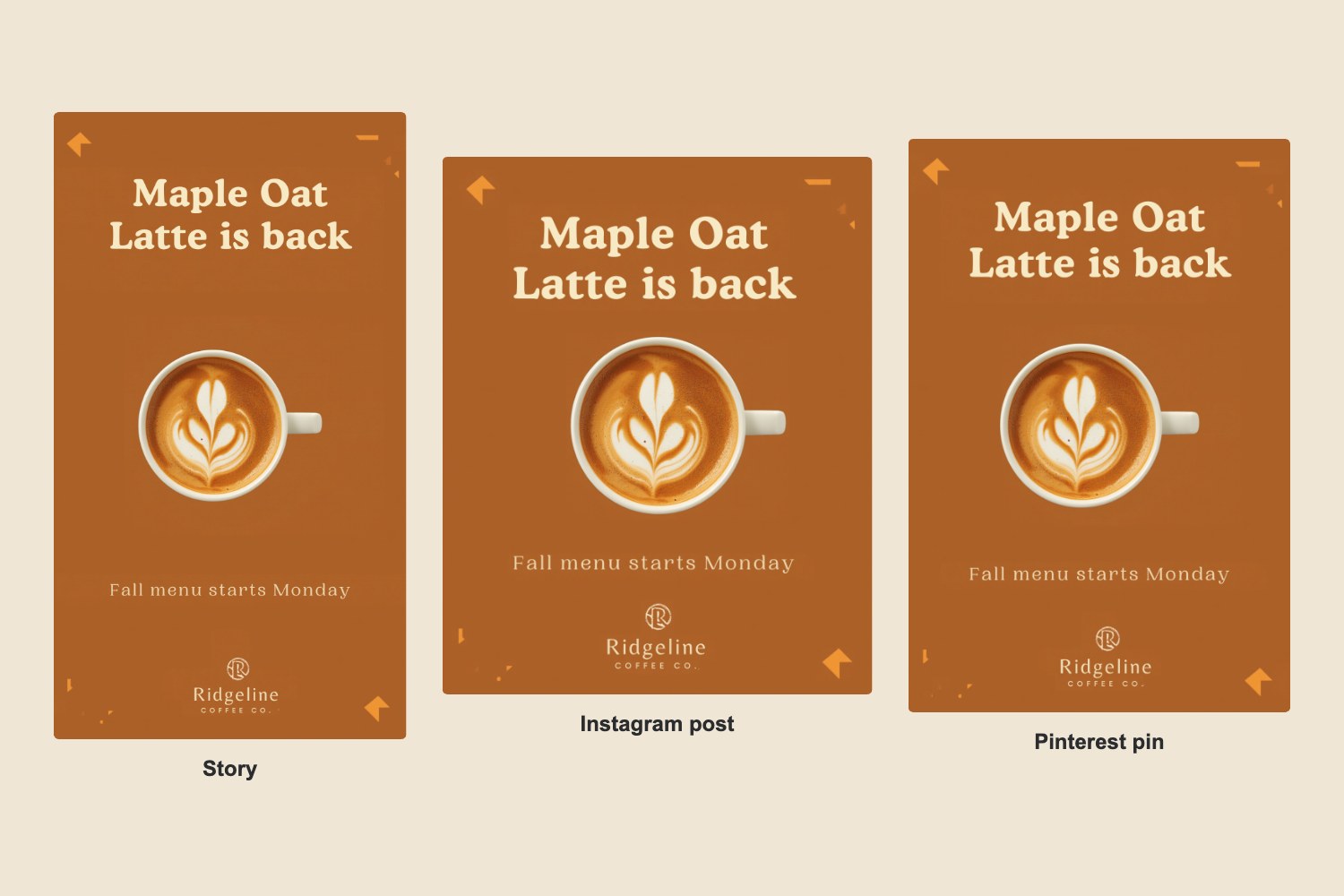
To make this real, we invented a local coffee shop, Ridgeline Coffee Co., launching a fall drink. Then we made the launch post in Canva and put it through every feature below.
1. Build a Brand Kit
Free: 1 kit. Pro: more
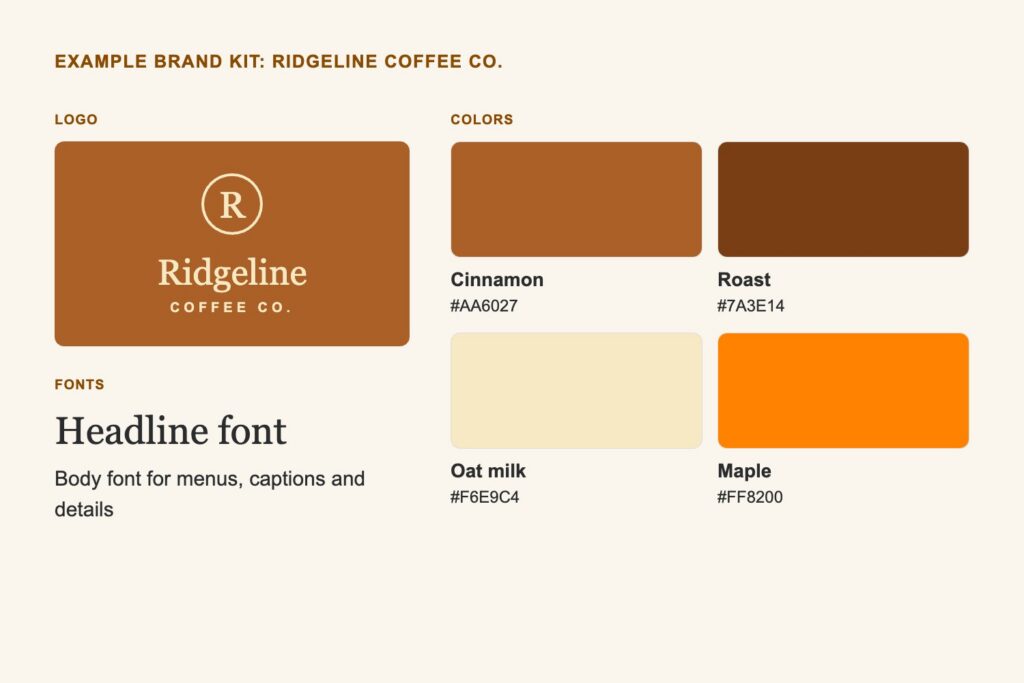
Save your logo, colors and fonts in one place so they show up in every design with one click.
Real example
Load the coffee shop’s logo, its three brand colors with hex codes, and its two fonts. Now anyone on the team builds a post that looks on-brand on the first try.
2. Resize one design for every platform
Pro
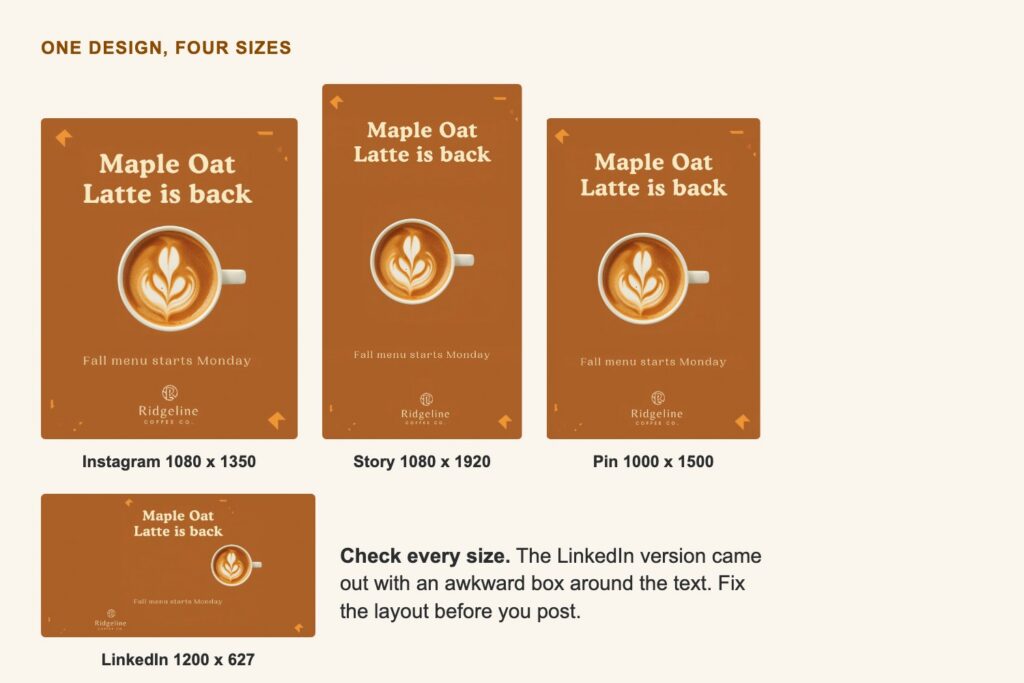
Magic Resize turns one design into the sizes you need for other platforms.
Real example
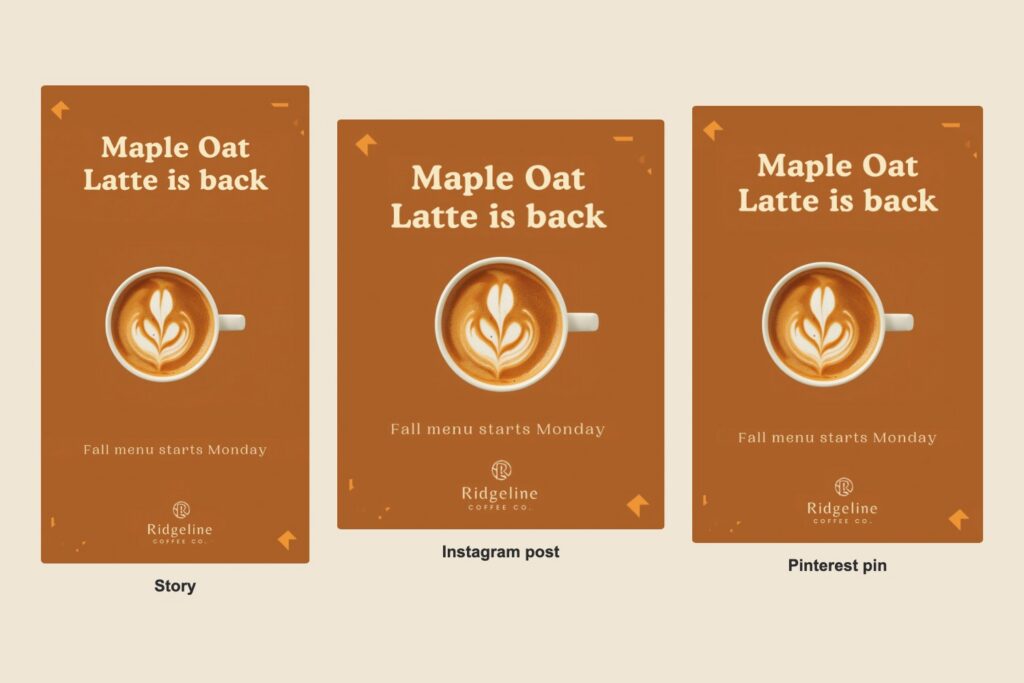
We designed the fall drink Instagram post once in Canva, then resized it into a story, a Pinterest pin and a LinkedIn post. Three came out clean. The LinkedIn version came out with an awkward box around the text, which is exactly why you check every size.
3. Remove the background
Pro
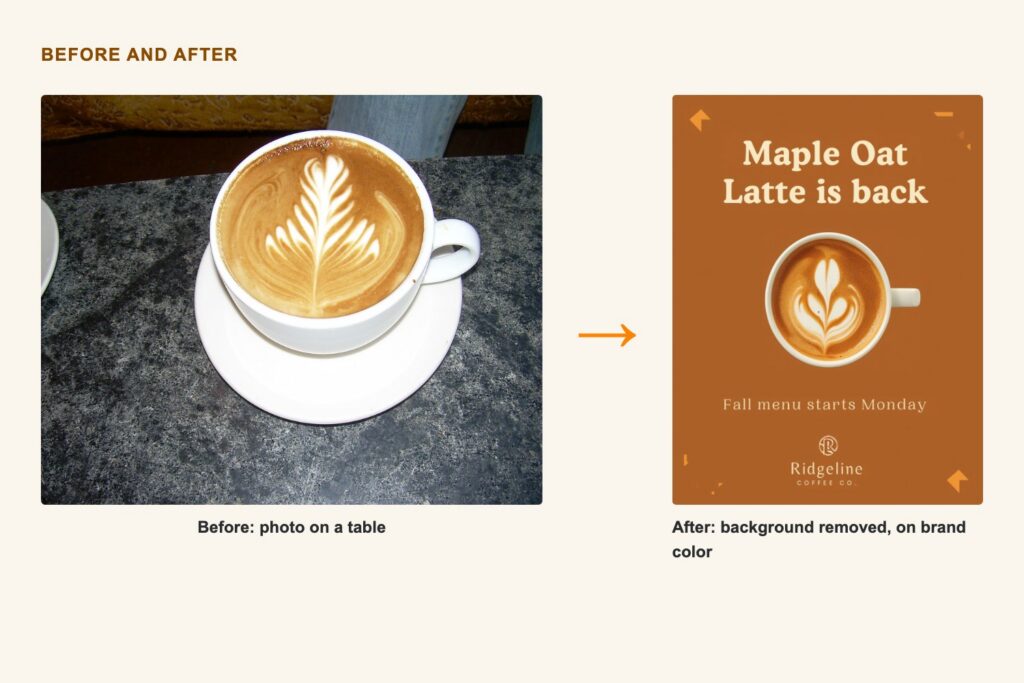
One click removes the background from a photo so the product stands alone.
Real example
Shoot the cup on any table, remove the background, and drop it onto a clean brand-color backdrop for the menu board and the ad.
4. Grab, erase and expand photos
Pro
Magic Grab lifts a subject out so you can move it. Magic Eraser removes distractions. Magic Expand widens a photo that is too tight.
Real example
Erase the stray napkin in your hero shot, then expand the photo so there is room for a headline on the left.
5. Make 50 designs from one spreadsheet
Pro and Education
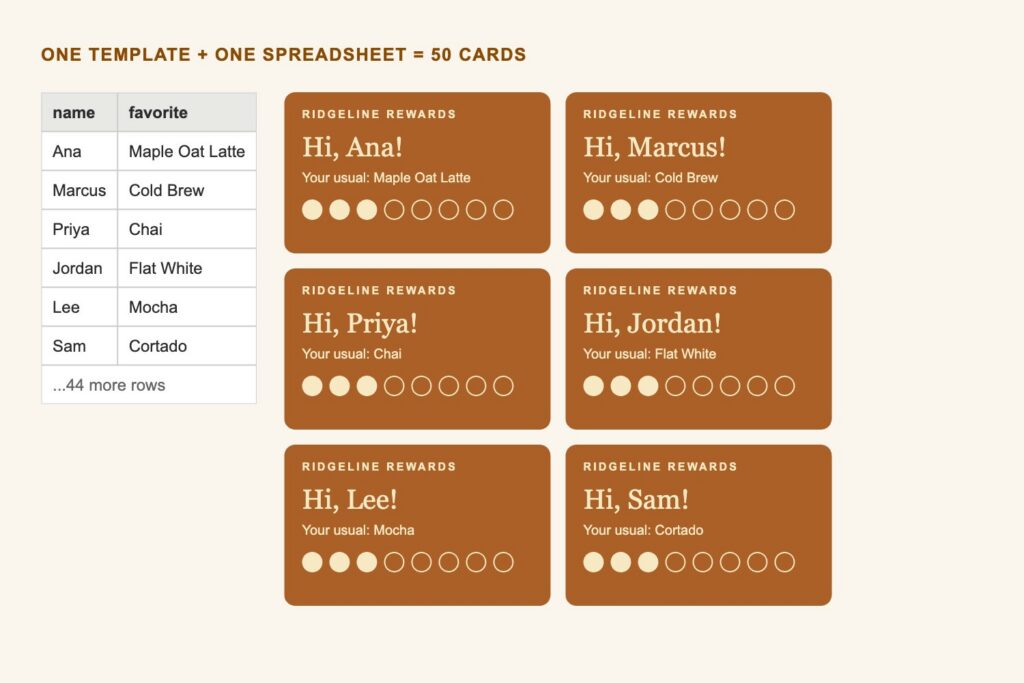
Bulk Create links a template to rows of data and makes one design per row.
Real example
Make 50 personalized loyalty cards, event name badges or menu cards from one spreadsheet instead of editing 50 files by hand.
Templates are a starting point. Your brand is the point.
Jules Morris
6. Caption your videos automatically
Built in
Turn on auto-captions in the video editor, then fix any words it gets wrong.

Real example
Your 30-second Reel of the barista pouring the fall drink gets captions in minutes. Check the drink name and the shop name, since auto-captions often miss brand names.
7. Check accessibility before you export
Built in
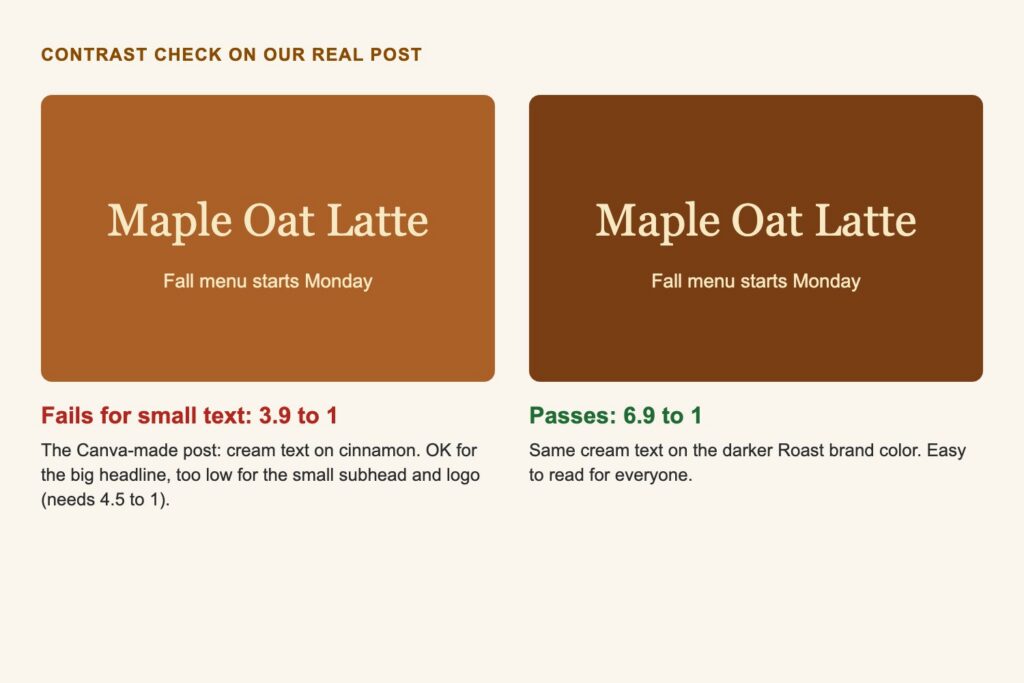
Canva’s accessibility check flags low color contrast, tiny text and missing alt text, and it can suggest alt text for you.
Real example
We ran our own post through a contrast check. Cream text on cinnamon came in at 3.9 to 1. That is fine for the big headline, but the small subhead and logo need 4.5 to 1. Switching the background to the darker Roast brown brought it to 6.9 to 1.
8. Publish a one-page website
Free on a Canva web address
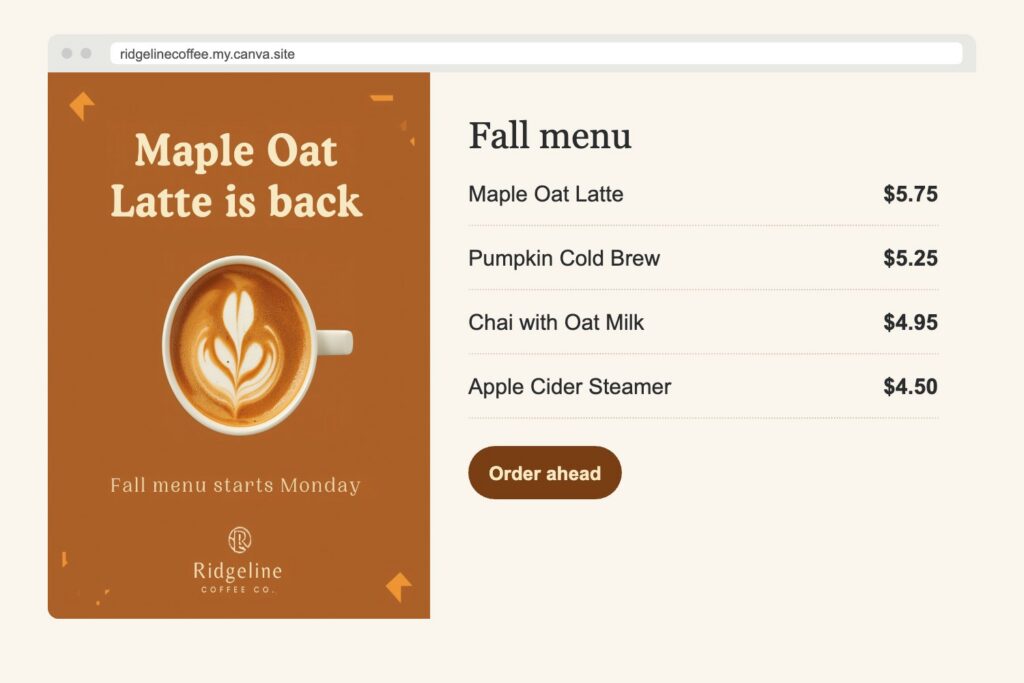
Turn a design into a simple website you can publish and share.
Real example
Build a one-page fall menu site for the coffee shop. Or build your own portfolio page to send to recruiters.
9. Turn numbers into charts
Basic charts on Free
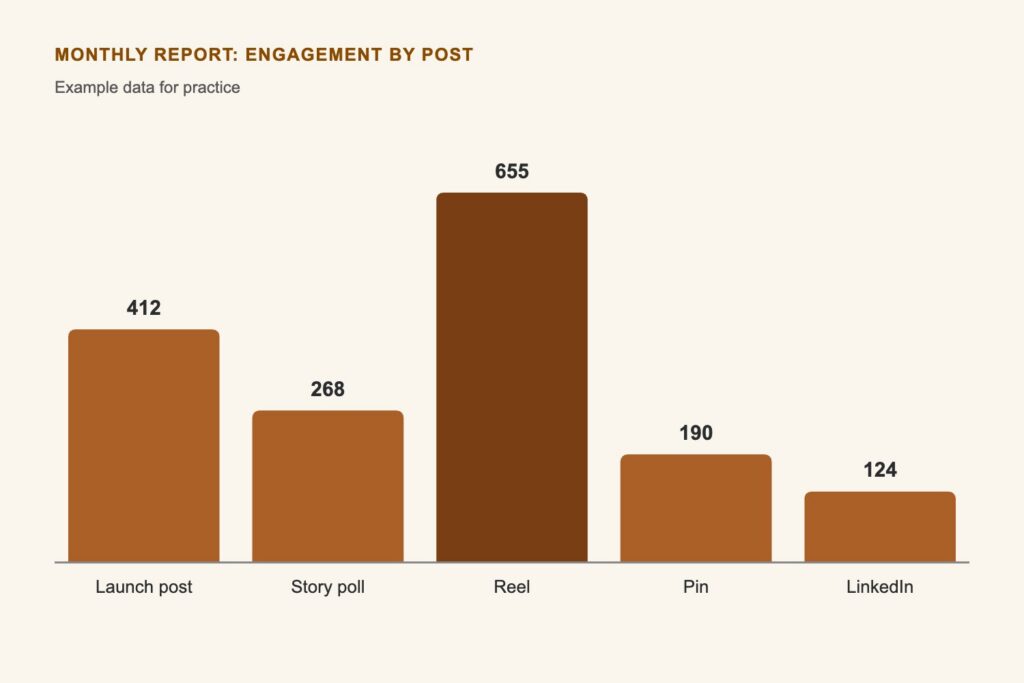
Add charts that match your brand instead of pasting in a default spreadsheet graph.
Real example
Show a client how each post performed this month in a clean bar chart in their brand colors. (The numbers here are practice data.)
10. Plan and schedule your posts
Pro
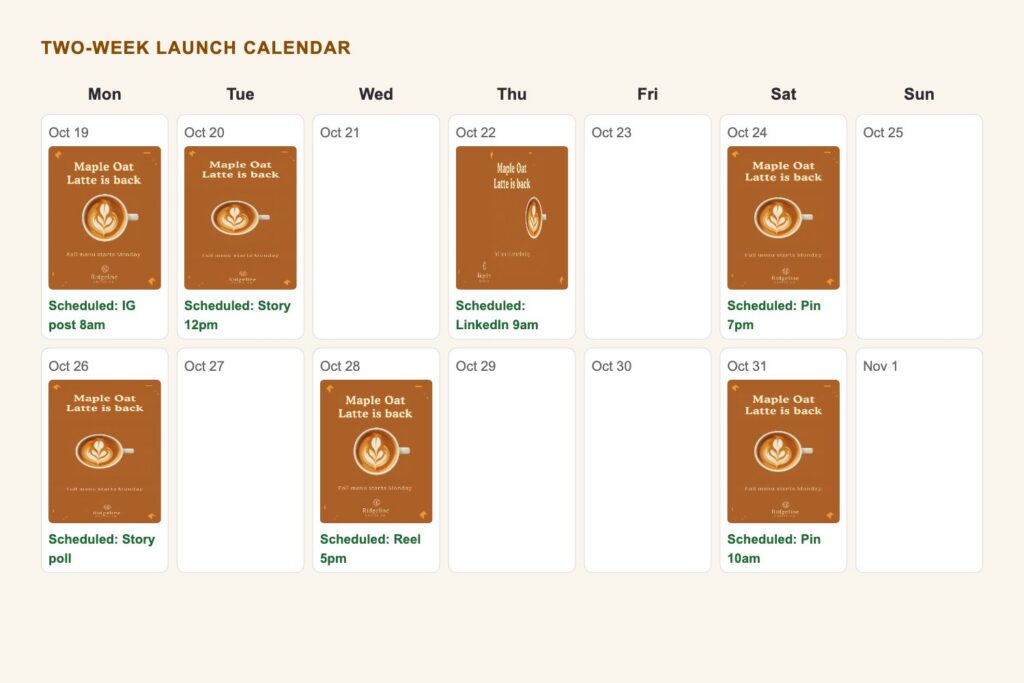
The Content Planner lets you schedule finished designs to social accounts from Canva.
Real example
Lay out the two-week launch calendar, attach each design and caption, and schedule them so they post while you are in class.
Before You Hit Download
A few habits make the difference between a design that looks fine and one that works.
- Use your Brand Kit, not the template’s colors. Templates are a starting point. Your brand is the point.
- Check every size. A resized design is a draft. Look at each version and fix anything that got cut off or crowded.
- Add alt text and captions. They are built in, they take a minute, and they help everyone. See my post on designing for the edges.
- Export the right file. PNG for graphics with text, JPG for photos, MP4 for video, and PDF Print for anything going to a printer.
Try this
Pick one design you made this semester. Set up a Brand Kit, resize the design for two more platforms, and run the accessibility check. Write down what you had to fix.
Free, Pro or Education?
Some of these are Pro features. Canva’s Education plan gives eligible schools Pro features at no cost, so check what your school account includes before you pay for anything. Canva changes features and plans often, so check its help center for what your plan has today.
Keep going
Designing in Canva
Our course topic with layouts, templates and class activities.
Design for the Edges
Why alt text, captions and contrast are marketing basics.
Canva Bulk Create help
How to connect a spreadsheet to a template.
Canva accessibility features
Alt text, captions, the design checker and more.
Publish a Canva website for free
Put a one-page site or portfolio online.
Leave a Reply