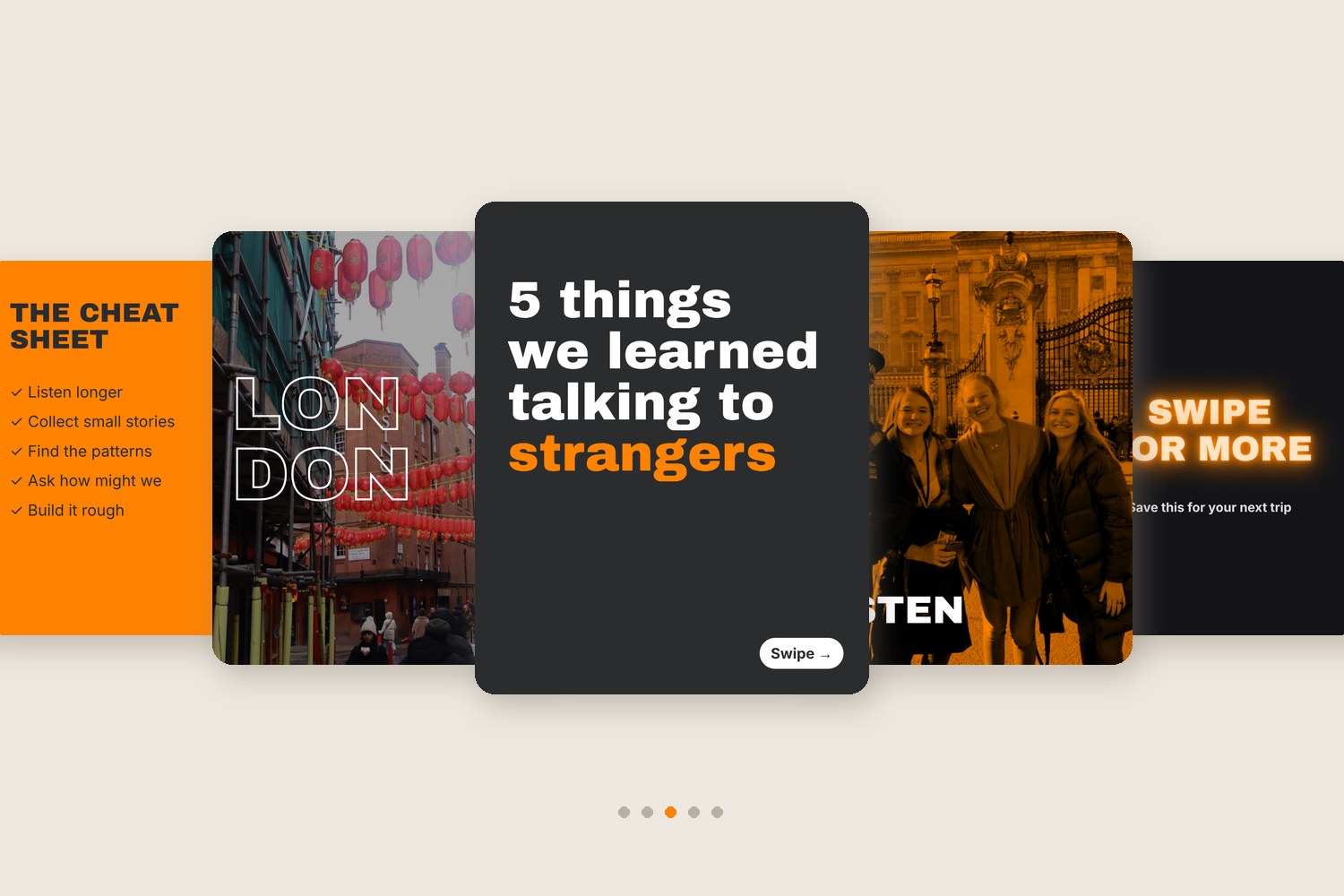
A carousel has one job: get the next swipe. These 15 effects are the ones I see work, and every one is built from tools already in Canva. Each example below was made for this post from photos of our Human-Centered Design and Leadership course in London.
At a glance
1
Hook on slide one
The first slide decides whether anyone swipes.
2
Pull across the seam
Elements that cross from one slide to the next beg for a swipe.
3
Repeat to build a brand
Use the same effect on every slide so the set feels like one piece.
4
End with a reason to save
A cheat sheet or checklist slide gets saved and shared.
Set Up Your Carousel
Most carousels use portrait slides at 1080 x 1350 pixels (4:5), with up to 20 slides. For effects that cross slides, start a custom design that is several slides wide, like 3240 x 1350 for three slides, and design across it. Then export it and split it into 1080-pixel-wide pieces, or crop each slide from a duplicate. Post the pieces in order. Check Instagram’s current specs before you export, since they change.
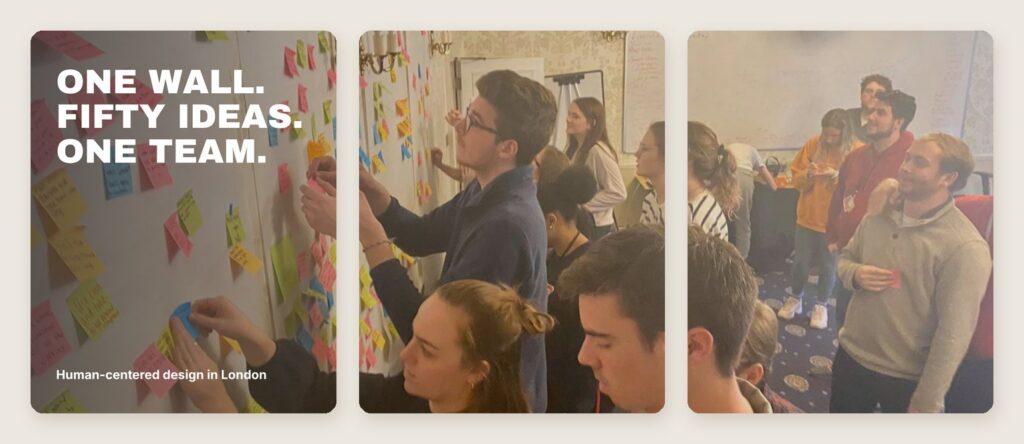
1. Seamless panorama
One photo stretches across several slides, so each swipe reveals more of the scene. It feels like one big picture instead of separate posts.
How to do it in Canva
- Start a custom design 3 slides wide (3240 x 1350 px).
- Drop one wide photo across the whole design and put your headline on the first third.
- Split it into three 1080 px slides and post them in order.
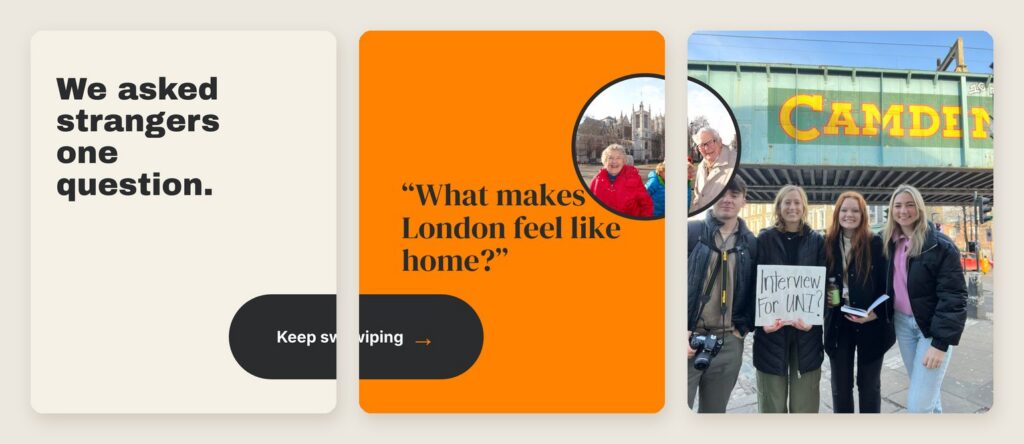
2. Bridge the seam
A shape, photo or button that sits across two slides is cut in half on the first slide. People swipe to see the rest of it.
How to do it in Canva
- Work in the wide 3-slide design.
- Place a pill, circle photo or arrow so it crosses the line between slides.
- Split and post. The half-cut element is your swipe cue.
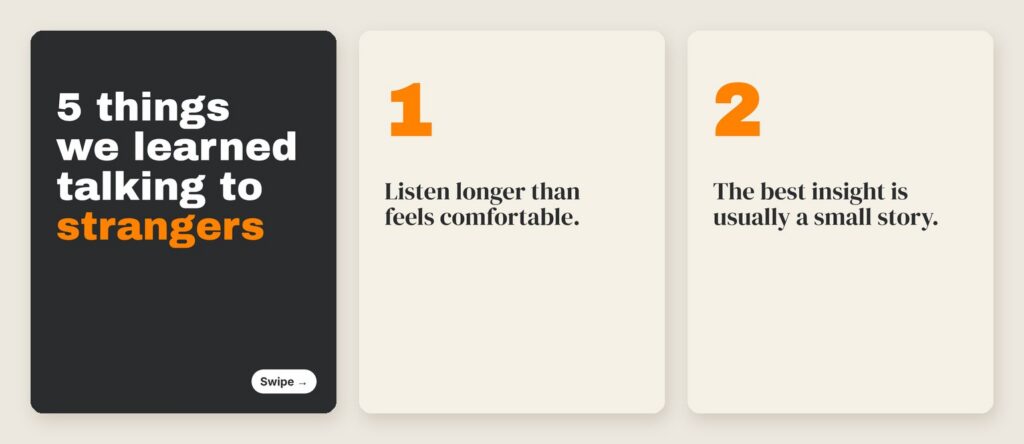
3. A hook cover with a swipe cue
Slide one is a promise in giant type, plus a small “Swipe” button. Numbered slides that follow keep the promise.
How to do it in Canva
- Use a bold display font at a huge size for 5 to 8 words.
- Highlight one key word in your accent color.
- Add a small “Swipe” pill in a corner, then number the slides that follow.
4. Progress bar
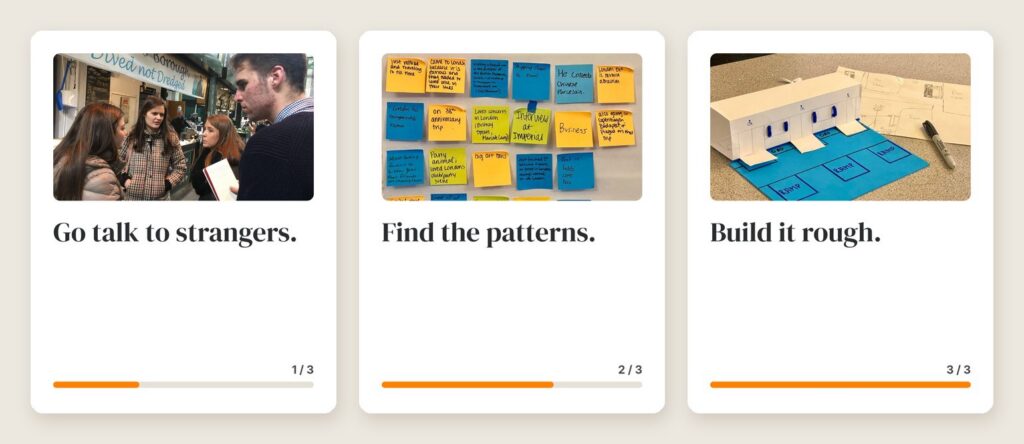
A bar along the bottom fills a little more on each slide, so people know how far they are and how much is left.
How to do it in Canva
- Draw a rounded rectangle as the track and a second one in your accent color on top.
- Make the accent bar one third, two thirds, then full width across the slides.
- Add “1 / 3” style numbers for extra clarity.
5. Hollow (outline) text
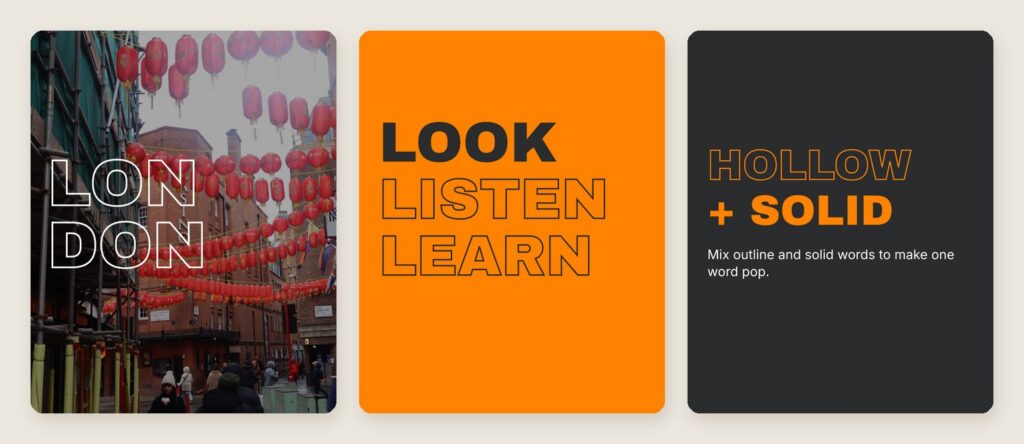
Outlined letters let the photo show through and feel editorial. Mixing one solid word with hollow words makes the solid one pop.
How to do it in Canva
- Select your text and open Effects.
- Choose Hollow and adjust the thickness.
- Pair it with a solid version of the same font for contrast.
6. Echo text
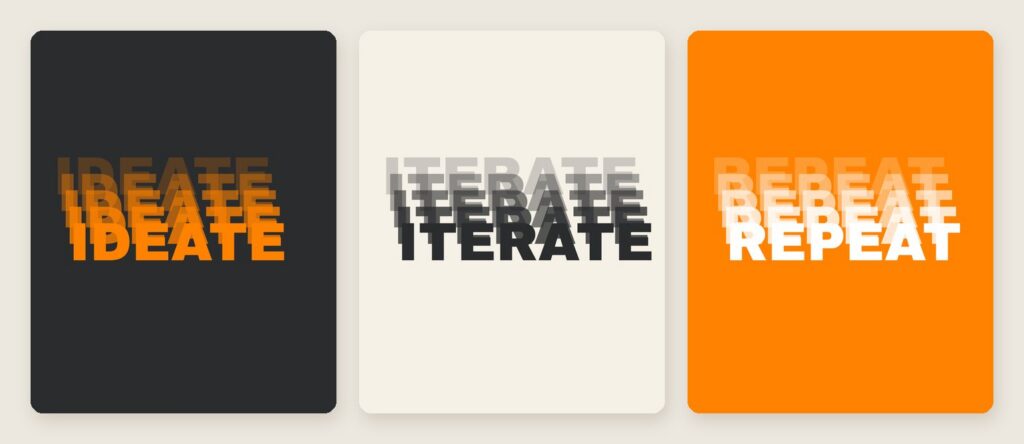
The same word repeats behind itself in fading layers. It adds motion to a still slide and works well for one-word slides.
How to do it in Canva
- Select a short, bold word and open Effects.
- Choose Echo, then adjust offset, direction and color.
- Keep the word short. Echo gets messy with long phrases.
7. Neon glow
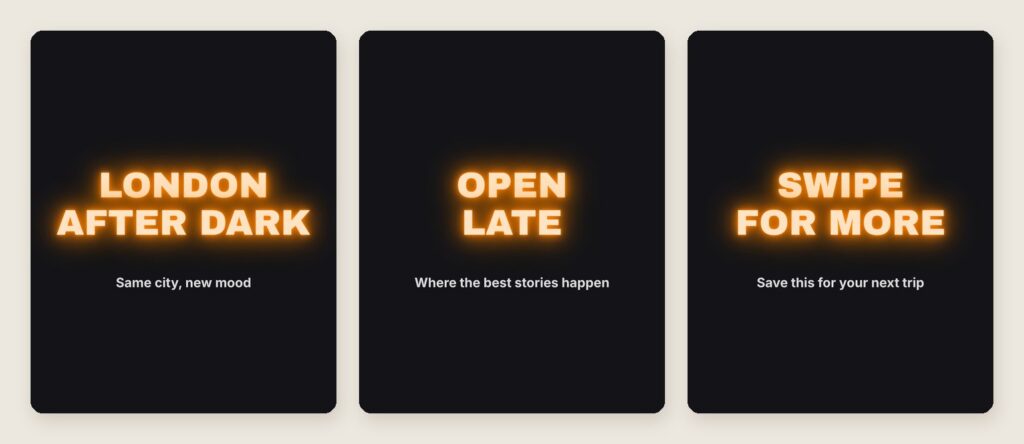
Glowing text on a near-black background stops the scroll, especially for night, event or launch content.
How to do it in Canva
- Set a near-black background.
- Select light text, open Effects and choose Neon.
- Raise the intensity and tint it with your brand color.
8. Highlighter text
A colored block behind key words works like a highlighter. It guides the eye to the point of the slide, even over a busy photo.
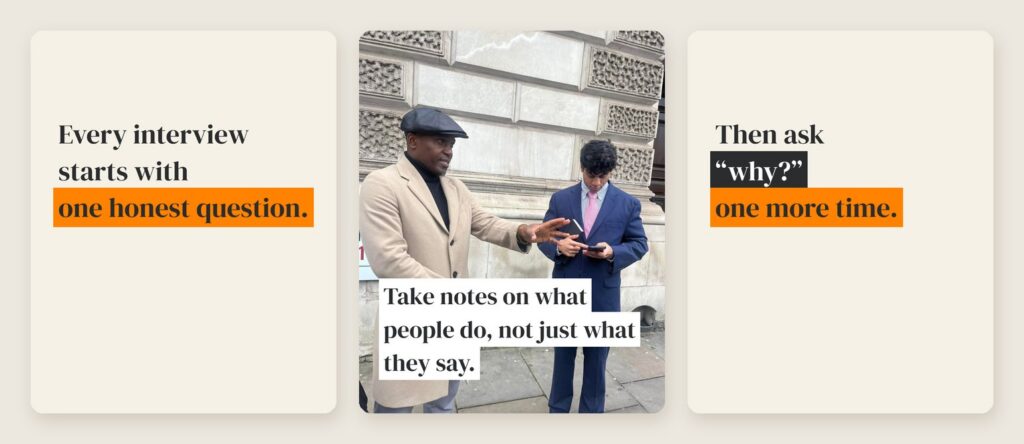
How to do it in Canva
- Select the words you want to stress and open Effects.
- Choose Background, then set the color, roundness and spread.
- Use it on one phrase per slide so it stays meaningful.
Every slide has one job: earn the next swipe.
Jules Morris
9. Duotone photos in brand colors
Turning every photo into the same two colors makes very different photos look like one brand set.
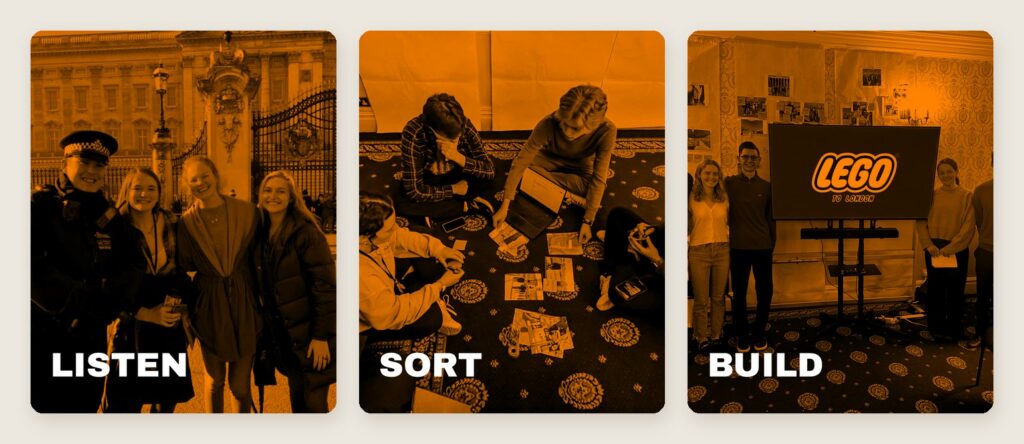
How to do it in Canva
- Select a photo and click Edit image (or Edit photo).
- Choose Duotone and pick a preset or set your two brand colors.
- Apply the same duotone to every photo in the carousel.
10. Photos in frames
Circles, arches and angled shapes give photos personality and leave clean space for text.
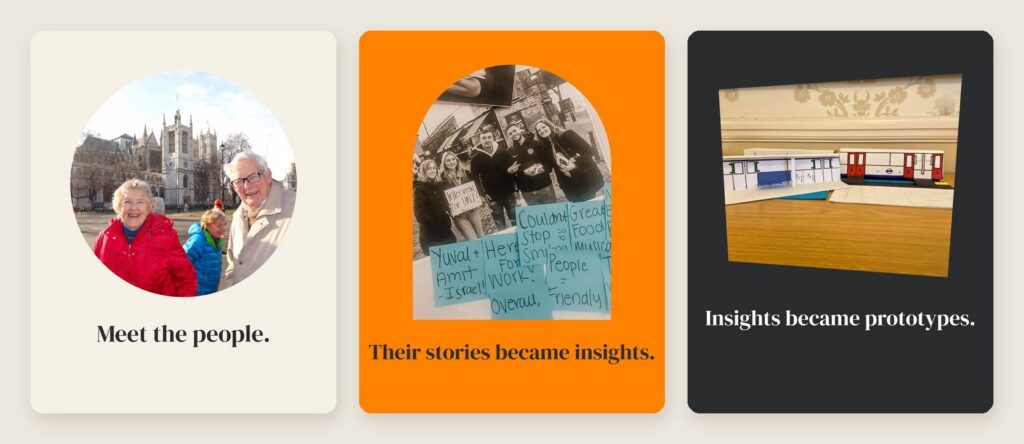
How to do it in Canva
- Open Elements and search for Frames.
- Drag a circle, arch or shape frame onto the slide.
- Drop your photo into the frame and double-click to adjust the crop.
11. Grid collage
Four photos on one slide tell a fuller story than one. A clean grid keeps it from looking cluttered.
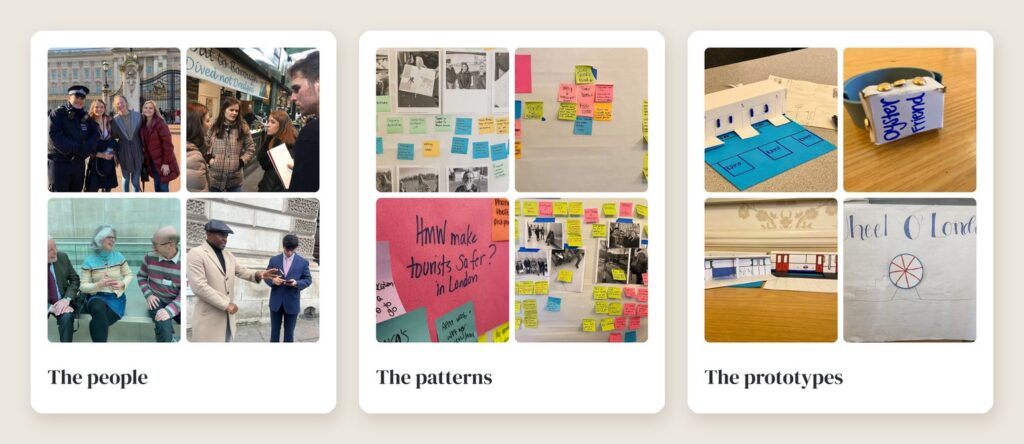
How to do it in Canva
- Open Elements and search for Grids.
- Pick a layout and drag photos into each cell.
- Set the spacing so the gaps match on every slide.
12. Zoom-in sequence
The same photo gets cropped tighter on each slide. It builds suspense and pulls people into a detail.
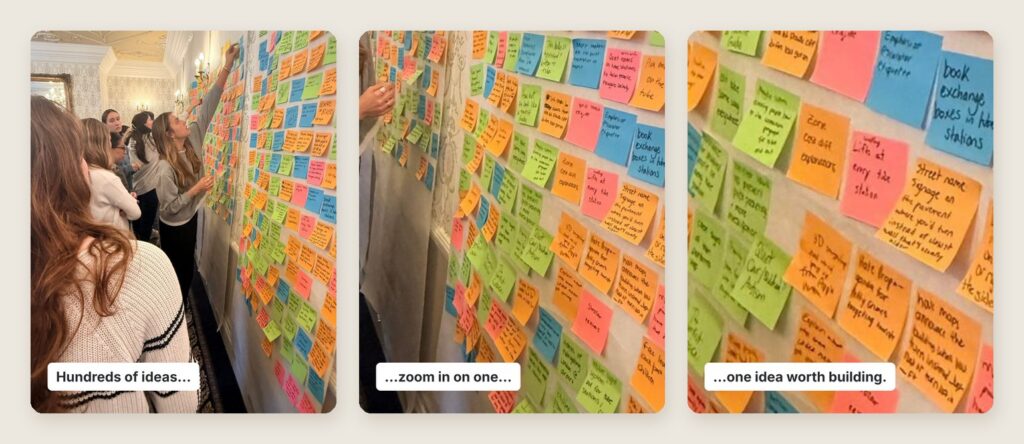
How to do it in Canva
- Put the same photo on three slides.
- Double-click to crop, zooming in a little more on each slide toward one detail.
- Add a short caption that moves the story forward.
13. Before and after
Show the change. A before slide, an after slide, and a split slide that puts them side by side makes the transformation obvious.
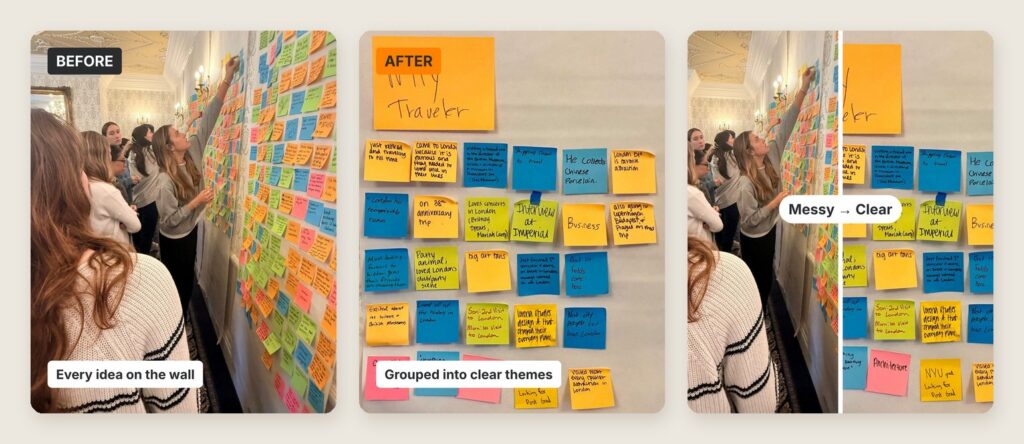
How to do it in Canva
- Make a Before slide and an After slide with clear labels.
- For the split slide, use a two-column grid with a thin white gap.
- Add a pill label like “Messy to Clear” across the middle.
14. Curved text badge
Text curved around a circle reads like a sticker or a seal. It adds a handmade, official feel.

How to do it in Canva
- Add a circle shape in your accent color.
- Add text, open Effects and choose Curve, then adjust the curve until it wraps the circle.
- Tilt the badge slightly and place it in a corner.
15. A save-this final slide
End with a cheat sheet and a bookmark icon. A summary people want to keep gets saved and shared, which tells the algorithm the post is useful.
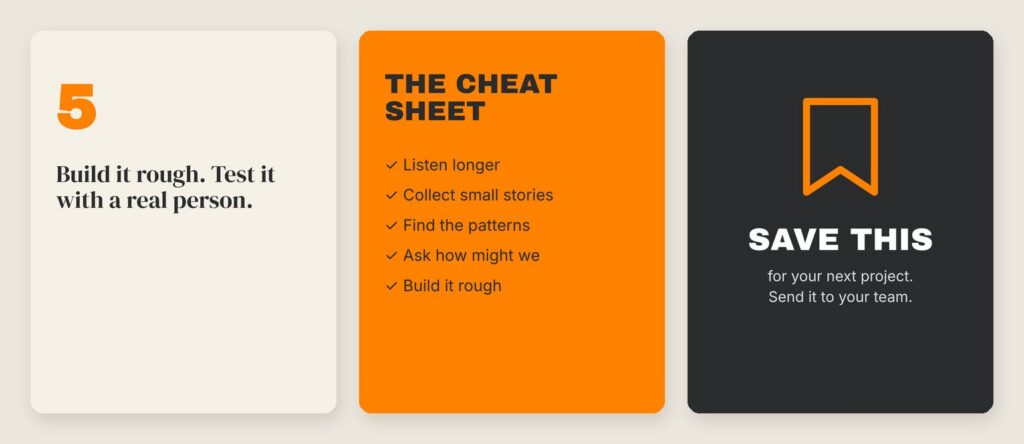
How to do it in Canva
- Make the second-to-last slide a quick checklist of the whole carousel.
- Make the last slide one clear action: Save this, Share it, or Comment.
- Use a simple bookmark icon from Elements.
Before You Post
- Keep text big. People read carousels on a phone. If you can’t read it at arm’s length, make it bigger.
- Check contrast. Text over photos needs a dark overlay, a highlight or a solid shape behind it.
- Add alt text. Instagram lets you write alt text for each image. Describe what is on each slide.
- Write the words in your caption too. Screen readers and search can read your caption more easily than text inside an image.
Try this
Pick three effects from this list and build a 5-slide carousel for your brand. Use one effect for the hook, one to carry the middle slides, and the save-this slide to close.
All examples were made for this post using photos from our Human-Centered Design and Leadership course in London.
Keep going
10 Cool Things You Can Do in Canva
Brand Kits, resizing, background removal and more, with real examples.
Designing in Canva
Our course topic with layouts, templates and class activities.
Platform Adaptation
Sizes and conventions for each platform.
Design for the Edges
Alt text, contrast and captions for every post.
10 Video Effects in Canva That Look Like Viral Reels
Text behind the subject, beat cuts, kinetic captions and more, with video examples.
Frequently asked questions
What size should an Instagram carousel be?
Most Instagram carousels use portrait slides at 1080 x 1350 pixels, a 4:5 ratio, with up to 20 slides. For effects that cross slides, start a custom Canva design several slides wide, such as 3240 x 1350 for three slides, then export and split it into 1080-pixel-wide pieces and post them in order. Check Instagram's current specs before exporting, since they change.
How do you make a seamless panorama carousel in Canva?
Start a custom Canva design three slides wide at 3240 x 1350 pixels. Drop one wide photo across the whole design and put your headline on the first third. Split it into three 1080-pixel slides and post them in order. Each swipe reveals more of the scene, so the carousel feels like one big picture instead of separate posts.
How do you get people to swipe through a carousel?
Every slide has one job: earn the next swipe. Make slide one a hook, a promise in giant type of 5 to 8 words with a small "Swipe" pill. Bridge the seam by placing a shape or photo across two slides so it is cut in half. A progress bar that fills on each slide also shows people how much is left.
What Canva text effects work well on carousels?
Canva's Effects panel offers several carousel-friendly styles. Hollow text lets the photo show through and feels editorial. Echo repeats a short word in fading layers to add motion. Neon makes glowing text on a near-black background. Background works like a highlighter behind key words, and Curve wraps text around a circle to make a badge. Use highlights on one phrase per slide.
What should the last slide of a carousel be?
End with a reason to save. Make the second-to-last slide a quick checklist of the whole carousel, and the last slide one clear action: Save this, Share it or Comment, with a simple bookmark icon. A summary people want to keep gets saved and shared, which tells the algorithm the post is useful. Also add alt text and repeat key words in the caption.